What is Toast Message?
- Toast message is a simple feedback about an operation in a small group. These messages only fill the amount of space required for the message.
- Toast messages automatically disappears after a timeout. It can be used to display information for the short period of time.
- The android.widget.Toast class is the subclass of Java.lang.Object class.
- The android.widget.Toast class is used to show notification or message for a particular interval of time and does not block the user interaction.
- The makeText() method is used to create an object of android.widget.Toast class.
- The show() method is used to display the toast notification.
- Android toast message is a solution for android developer to notify users about an operation without expecting any user input.
- It provides a small popup which displays a message for a small period and fades out automatically after timeout.
- By default, the toast notification appears near the bottom of the screen, but developer can change the position by using setGravity() method.
For example: In Gmail app, when a mail is saved into draft box, it shows a toast message “Saved to Draft” this message is called a toast message.
The makeText() method takes three parameters:
1. Application Context
2. Text Message
3. Duration for the toast
Syntax:
Toast toast = Toast.makeText(getApplicationContext, “Toast message”, Toast.LENGTH_SHORT);
toast.show();
I. Gravity constant
II. x-position offset
III. y-position offset
For Example:
Toast.setGravity(Gravity.TOP | Gravity.LEFT, 0, 0);
Example : Creating Toast Message
The following example demonstrates how to create a toast message in a device.
File name: content_main.xml
<?xml version = "1.0" encoding="utf-8"?>
<RelativeLayoutxmlns:android = "http://schemas.android.com/apk/res/android"
xmlns:app = "http://schemas.android.com/apk/res-auto"
xmlns:tools = "http://schemas.android.com/tools"
android:layout_width = "match_parent"
android:layout_height = "match_parent"
android:paddingBottom = "@dimen/activity_vertical_margin"
android:paddingLeft = "@dimen/activity_horizontal_margin"
android:paddingRight = "@dimen/activity_horizontal_margin"
android:paddingTop = "@dimen/activity_vertical_margin"
app:layout_behavior = "@string/appbar_scrolling_view_behavior"
tools:context = "com.example.itwin.toastdemo.MainActivity"
tools:showIn = "@layout/activity_main">
<Button
android:layout_width = "wrap_content"
android:layout_height = "wrap_content"
android:text = "Show Message"
android:textSize = "30dp"
android:id = "@+id/btnShow"
android:layout_marginTop = "72dp"
android:onClick = "showToast" // It will call showTost() method
android:layout_alignParentTop = "true"
android:layout_centerHorizontal = "true" />
</RelativeLayout>
File name: MainActivity.java
public class MainActivity extends AppCompatActivity
{
Button btn;
@Override
protected void onCreate(Bundle savedInstanceState)
{
super.onCreate(savedInstanceState);
setContentView(R.layout.activity_main);
btn = (Button)findViewById(R.id.btnShow);
}
public void showToast(View v)
{
Toast toast = Toast.makeText(getApplicationContext(), "Welcome to TutorialRide", Toast.LENGTH_SHORT);
toast.show();
}
}
Output:
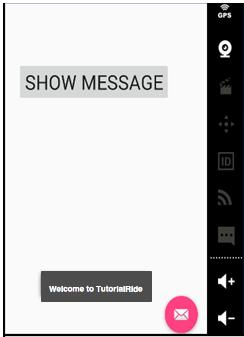
In the above output, on clicking the “SHOW MESSAGE” button, you can see the toast message “Welcome to TutorialRide”.