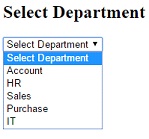
For creating a dropdownlist using hard coded values we will use the following overloaded version of "DropDownList" html helper.
DropDownList(string name, IEnumerable<SelectListItem>selectList, string optionLabel)
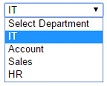
In this example, the dropdownlist list will show the list of departments. User can select only one department at a time.
<td>@Html.DropDownList("Departments", newList<SelectListItem>
{
newSelectListItem { Text = "IT", Value = "1", Selected=true},
newSelectListItem { Text = "Account", Value = "2"},
newSelectListItem { Text = "Sales", Value = "3"},
newSelectListItem { Text = "HR", Value = "4"}
}, "Select Department")
In the above code, Selected=true attribute indicates that, when you run the application you will see the IT as selected element in the dropdownlist.
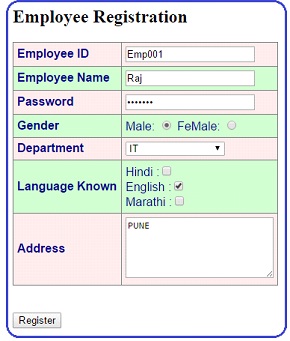
Let us see one example that will cover Textbox, dropdownlist, label, password, and radiobutton html helper.
<!DOCTYPEhtml>
<!DOCTYPE html>
<html>
<head>
<title>Employee Form</title>
<h2>Employee Registration</h2>
</head>
<body>
<style>
table, th, td
{
border: 1px solid grey;
border-collapse: collapse;
padding: 5px;
}
table tr:nth-child(odd)
{
background-color: #ffe6e6;
}
table tr:nth-child(even)
{
background-color: #ccffcc;
}
</style>
@using (Html.BeginForm())
{
<table style="font-family:Arial; font-size:medium; color:darkblue">
<tr>
<td><b>Employee ID</b></td>
<td>@Html.TextBox("txtID")</td>
</tr>
<tr>
<td><b>Employee Name</b></td>
<td>@Html.TextBox("txtName")</td>
</tr>
<tr>
<td><b>Password</b></td>
<td>@Html.Password("txtPassword")</td>
</tr>
<tr>
<td><b>Gender</b></td>
<td>Male: @Html.RadioButton("rdbMale", "Male", false) FeMale: @Html.RadioButton("rdbFeMale",false)</td>
</tr>
<tr>
<td><b>Department</b></td>
<td>@Html.DropDownList("Departments", new List<SelectListItem>
{
new SelectListItem { Text = "IT", Value = "1", Selected=true},
new SelectListItem { Text = "Account", Value = "2"},
new SelectListItem { Text = "Sales", Value = "3"},
new SelectListItem { Text = "HR", Value = "4"}
}, "Select Department")
</td>
</tr>
<tr>
<td><b>Language Known</b></td>
<td> Hindi :@Html.CheckBox("Hindi")<br />
English :@Html.CheckBox("English")<br>
Marathi :@Html.CheckBox("Marathi")<br>
</td>
</tr>
<tr>
<td><b>Address</b></td>
<td>@Html.TextArea("Comments", "", 5, 25, null)</td>
</tr>
</table>
<br /><br />
<input type="submit" value="Register" />
}
</body>
</html>
For creating this application, first add a controller and then add the View. Here all the value in dropdownlist is hard coded. In real life application the values should come from database. In the next section, we will see the how to retrieve data from the database to fill the dropdownlist.
The above code is written in Index.cshtml file. When you run the application you will see the output as given below.
Populating a dropdownlist using Database
For this example, we will use entity framework to retrieve data from database.Step 1: From visual studio create new MVC project. Provide some name and click OK.
Step 2: Create a controller and view as we have created earlier.
Step 3: Now right click on model and add → add new item, under the visual C# data select ADO.NET entity data model. Provide some name, we have given EmployeeDataModel. Click OK.
Step 4: Entity data model wizard will open. Select generate from database icon and click next.
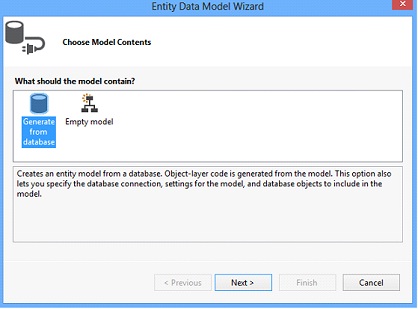
Follow the instructions and establish the connection with the database. Provide the name of connection string that will store in web.config file. We have given name as EmployeeDBContext.
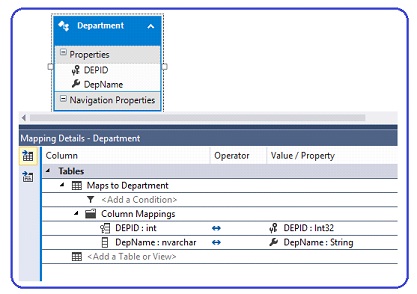
It will create the class EmployeeDBContextautomatically. We have already created the database table Department which has two columns DepID and DepName. Select the Department table through this wizard.
Create the instance of EmployeeDBContext in controller class. You have to pass the data from controller to view, therefore we used ViewBag object. It creates the dynamic property. Here property name is Departments.
Please keep in mind that when select the table from the entity data model wizard, we have given Model Namespace name as Models. We have used this namespace in MVC controller.
using System;
usingSystem.Collections.Generic;
usingSystem.Linq;
usingSystem.Web;
usingSystem.Web.Mvc;
usingMvcDDL.Models;
namespaceMvcDDL.Controllers
{
publicclassHomeController : Controller
{
publicActionResult Index()
{
EmployeeDBContextdb = newEmployeeDBContext();
ViewBag.Departments = newSelectList(db.Departments, "DEPID", "DepName");
return View();
}
}
}
@{
ViewBag.Title = "Select Department";
}
<h2>Select Department</h2>
@Html.DropDownList("Departments", "Select Department")
Execute the application you will see the following output.
Output: