HTML Forms
- Form is a part of web page.
- It is used to collect user input through elements like text fields, check box and radio button, select option, text area, submit buttons and etc.
- Form works like a container which consists of controls known as form elements.
- The HTML <form> tag is used to create an HTML form.
<form action="Script URL" method="GET/POST">
form elements land layout tags
</form>
Form Attributes
| Attribute | Description |
|---|---|
| action | Specifies the encoding of the submitted data. |
| enctype | Used to give a name to the control. |
| method | Specify the method to be used to upload data. |
| name | Used to identify and retrieve values from each form on the web page. |
| target | Indicates the target of the address in the action attribute. |
1. Creating text box
- The <input> tag is used to create form elements.
- It does not have end tag.
| Attribute | Description |
|---|---|
| Type | Specifies the type of input control. |
| Name | Used to give a name to the control. |
| Id | Used to identify the input field uniquely. |
| Size | Used to specify the width of the text-input control in terms of characters |
| Value | It is a default text or number that is displayed in the text field. |
| Maxlength | Used to specify the maximum number of characters a user can enter into a input field. |
Example: Text Input Control
<!DOCTYPE html>
<html>
<head>
<title>Text Input Control Example</title>
</head>
<body>
<form >
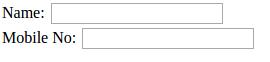
Name: <input type="text" name="name" />
<br>
Mobile No: <input type="text" name="mob_no" />
</form>
</body>
</html>
Output:
2. Creating password
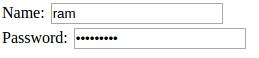
A password field is nothing but the text box in which the characters typed by the user are displayed as bullet or asterisks.
Example: Password Box
<!DOCTYPE html>
<html>
<head>
<title>Password Field Example</title>
</head>
<body>
<form >
Name: <input type="text" name="name" />
<br>
Password: <input type="password" name="password" />
</form>
</body>
</html>
Output:
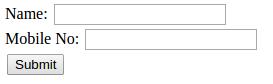
3. Creating Submit Button
Submit button is used to send the form's data to the specified URL.
Example: Submit Button
<!DOCTYPE html>
<html>
<head>
<title>Submit Button Example</title>
</head>
<body>
<form >
Name: <input type="text" name="name" />
<br>
Mobile No: <input type="text" name="mob_no" />
<br>
<input type="submit" value="Submit">
</form>
</body>
</html>
Output:
4. Creating Radio Button
Radio button is used to select a single option from the list of options.
Example: Radio Button
<!DOCTYPE html>
<html>
<head>
<title>Radio Button Example</title>
</head>
<body>
<form >
<input type="radio" name="gender" value="male"> Male
</br>
<input type="radio" name="gender" value="female"> Female
</form>
</body>
</html>
Output:

5. Creating Check Box
Check box is used to select more than one option from the list of options.
Example: Check Box
<!DOCTYPE html>
<html>
<head>
<title>Check Box Example</title>
</head>
<body>
<form >
<input type="checkbox" name="cricket" value="on"> Cricket
</br>
<input type="checkbox" name="hockey" value="on"> Hockey
</form>
</body>
</html>
Output:

6. Creating Multiple-Line Text Input
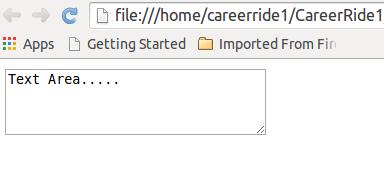
- The <textarea> tag is used to create multi-line text box.
- This is used to enter large amount of data.
Example: Multiple-Line Text Input
<!DOCTYPE html>
<html>
<head>
<title>Multiple-Line Text Input Example</title>
</head>
<body>
<form>
<textarea rows="4" cols="30" name="address">
Text Area.....
</textarea>
</form>
</body>
</html>
Output: